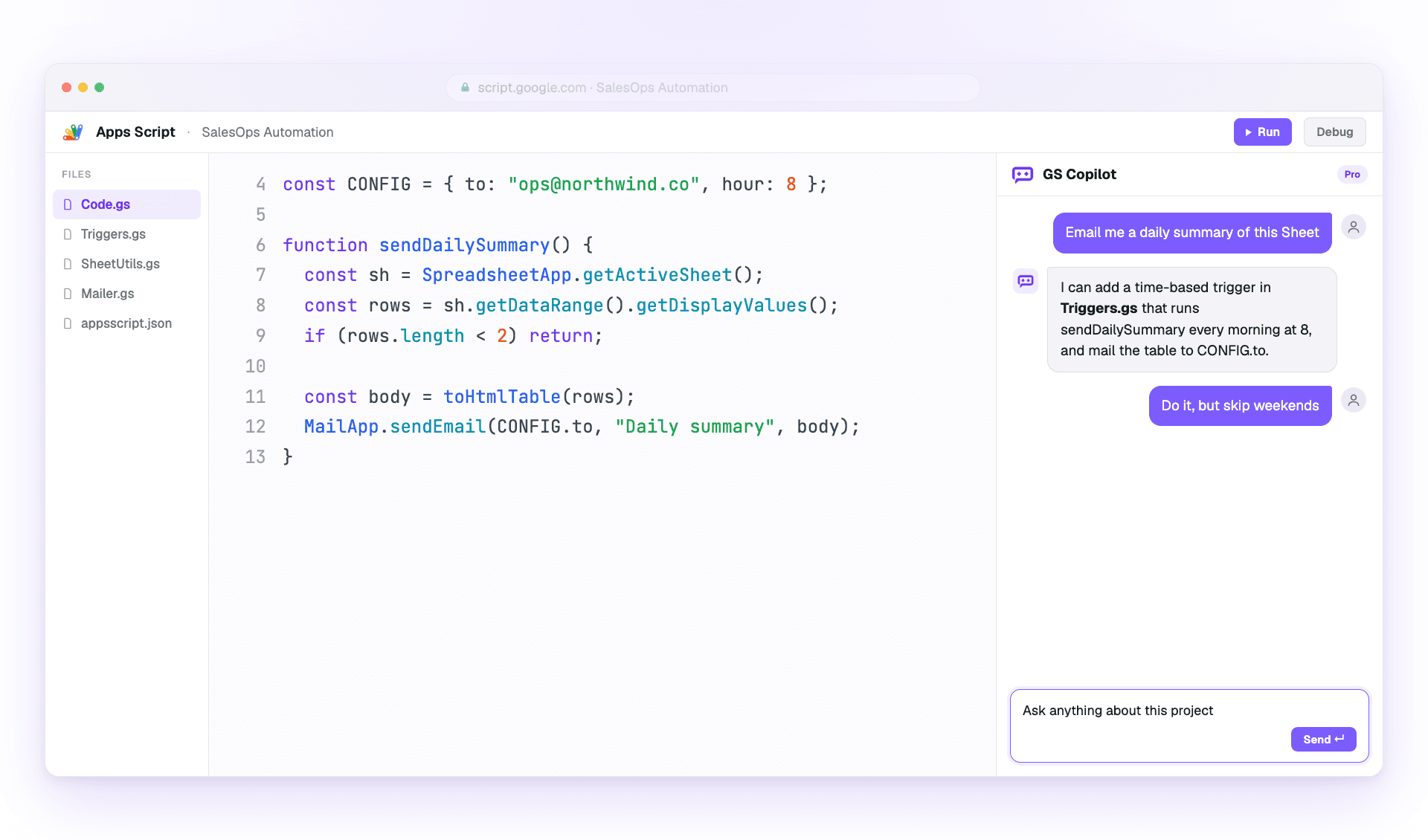
Comment utiliser Google Apps Script Copilot.
Un guide pratique pour tirer le meilleur parti de votre assistant de code IA : installation, quatre fonctions essentielles et bonnes habitudes.
Installez, connectez-vous, livrez en 90 secondes.
Deux étapes. Aucun fichier de config. Aucune CLI. Ton compte Google existant fait le gros du travail.
Installation et configuration
Install the Google Apps Script Copilot extension from the Chrome Web Store and sign in with the same Google account you use for Apps Script.
- Open the Chrome Web Store listing and add Google Apps Script Copilot to Chrome.
- Se connecter with the Google account that owns your Apps Script projects.
- Open script.google.com and refresh the editor once after installing.
- Utilise le compte Google propriétaire de tes projets Apps Script
- Accorde les autorisations demandées pour que le panneau de l'IDE puisse s'afficher
- Épingle l'extension à la barre d'outils pour confirmer son chargement
Premier projet
Ouvre n'importe quel projet Apps Script (ou crée-en un). Copilot affiche un panneau latéral dans l'IDE dès le chargement du projet.
- Open an existing Apps Script project or create a blank one.
- Wait for the Copilot panel to appear inside the editor.
- Ask a small first question, such as explaining the active file.
- Commence par un petit projet pour voir comment le contexte se charge
- Garde des noms de fichiers descriptifs — Copilot s'en sert comme repères
- Enregistre souvent pendant que tu expérimentes ; Apps Script conserve les versions pour toi
Les quatre choses que vous utiliserez chaque jour.
Master these and you've mastered Copilot. Each workflow is explained in plain steps so you can try it immediately.
Mode Chat
Use the side panel to ask questions, debug errors, and request changes with project context already attached.
- Open the Copilot panel beside your code.
- Describe the outcome you want in one or two sentences.
- Review the answer, then ask a follow-up or apply the suggested change.
- Sois précis sur ce que tu veux changer
- Référence les noms de fonctions au lieu de coller du code
- Use follow-ups; Copilot remembers the thread
Suggestions inline
Get ghost-text suggestions while you type, then accept only the parts that help.
- Place your cursor where the next code should go.
- Pause briefly so Copilot can read the surrounding context.
- Press Tab to accept or Esc to dismiss the suggestion.
- Garde le curseur en fin de ligne pour le meilleur contexte
- Write a short comment first when the next step is complex
- Reject suggestions freely when they do not match your intent
Contexte multi-fichiers
Attach the files that matter so Copilot understands triggers, helpers, libraries, and connected services.
- Open the context picker in the panel.
- Add the files involved in the task you are working on.
- Remove files that no longer matter before asking the next question.
- Include only the files the task vraiment touches
- Keep file names descriptive for better grounding
- Pin important files when you want them kept across the session
Historique et branches
Return to saved project conversations or branch from an earlier message when you want to try a different fix.
- Open chat history from the Copilot panel.
- Select the conversation that matches the project or bug.
- Fork from an older message before testing a different approach.
- Nom important threads so they are easier to find
- Fork before trying risky changes
- Reuse a successful thread on similar bugs
Livrez plus vite sans livrer de bugs.
Comment les utilisateurs expérimentés tirent le meilleur de Copilot tout en gardant leur code relisible.
Prompts efficaces
Give Copilot the goal, the constraints, and the exact service you are using.
- Start with the outcome you want.
- Add the current error, file, function, or data shape.
- Ask for code plus a short explanation when the change is important.
- Commence par le résultat, pas par l'implémentation
- Cite les messages d'erreur mot pour mot lors du débogage
- Specify the service: SpreadsheetApp, DriveApp, or GmailApp
- Demande des explications en plus du code
Qualite et securite du code
Treat AI output like a teammate's draft: useful, fast, and worth reviewing before it ships.
- Read the generated code before applying it.
- Run the smallest safe test you can.
- Move secrets into PropertiesService instead of prompts or source code.
- Teste d'abord sur une copie de la feuille
- Validate every external input from forms or URL params
- Keep changes small enough to review
- Never paste secrets into a prompt