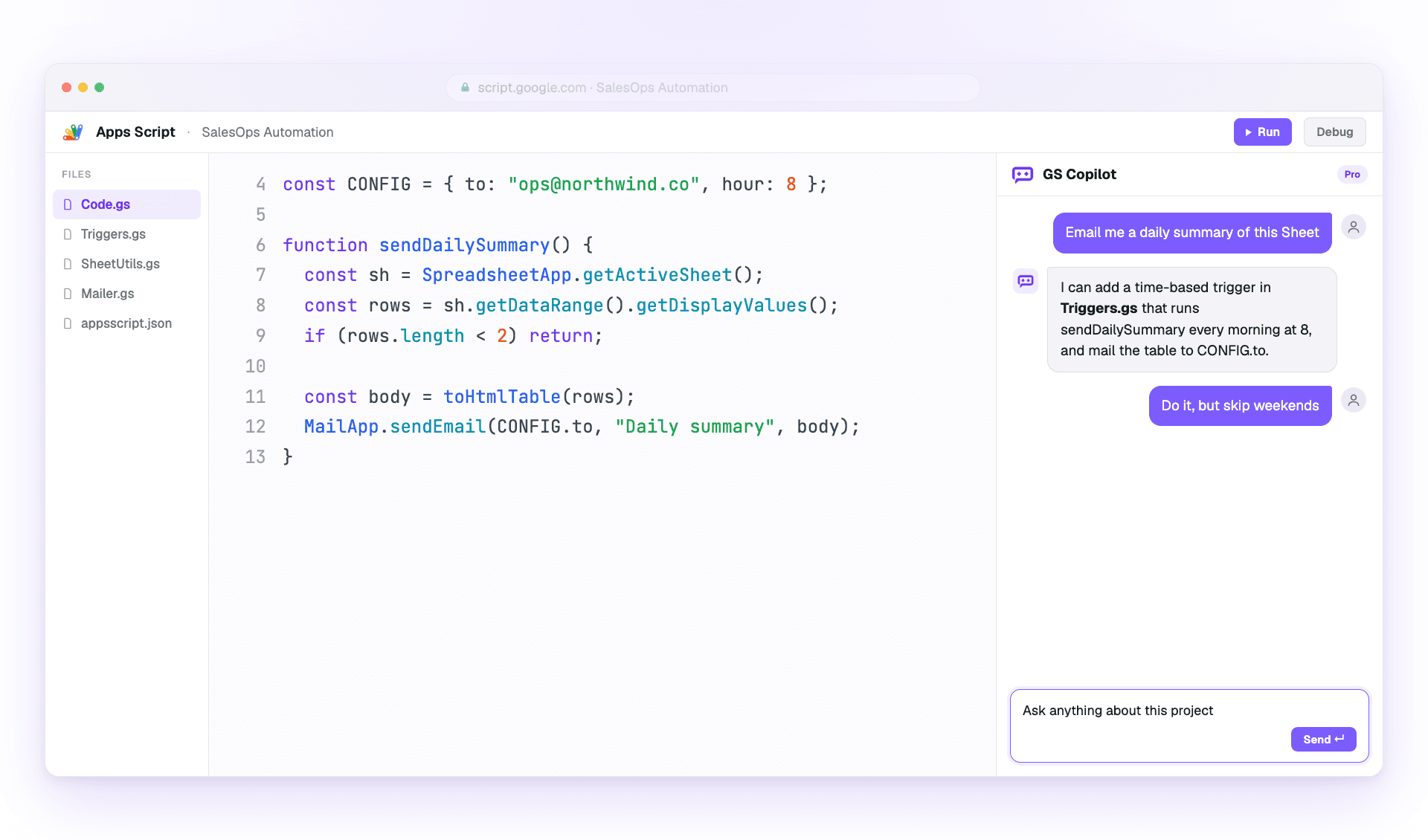
ガイド

Google Apps Script Copilot の使い方。

AI コーディングアシスタントを最大限に活用するための実践ガイドです。インストール、重要な 4 機能、上手な使い方をまとめました。

はじめに

インストール、ログイン、90秒で開始。

2 ステップ。設定ファイルなし。CLI なし。既存の Google アカウントが大半をこなします。

インストールと設定

Install the Google Apps Script Copilot extension from the Chrome Web Store and sign in with the same Google account you use for Apps Script.

手順
  1. Open the Chrome Web Store listing and add Google Apps Script Copilot to Chrome.
  2. サインイン with the Google account that owns your Apps Script projects.
  3. Open script.google.com and refresh the editor once after installing.
ポイント
  • Apps Script プロジェクトを所有する Google アカウントを使用
  • IDE パネルを表示できるよう、要求された権限を許可します
  • 読み込みを確認するため、拡張機能をツールバーに固定します

最初のプロジェクト設定

任意の Apps Script プロジェクトを開く(または作成)。プロジェクトが読み込まれた瞬間に Copilot が IDE 内にサイドパネルを表示します。

手順
  1. Open an existing Apps Script project or create a blank one.
  2. Wait for the Copilot panel to appear inside the editor.
  3. Ask a small first question, such as explaining the active file.
ポイント
  • コンテキストの読み込みを確認するため、小さなプロジェクトから始めましょう
  • ファイル名はわかりやすく — Copilot はそれを手がかりに使います
  • 試行中はこまめに保存を。Apps Script がバージョンを残してくれます
主な機能

毎日使う4つの機能。

Master these and you've mastered Copilot. Each workflow is explained in plain steps so you can try it immediately.

チャットモード

Use the side panel to ask questions, debug errors, and request changes with project context already attached.

手順
  1. Open the Copilot panel beside your code.
  2. Describe the outcome you want in one or two sentences.
  3. Review the answer, then ask a follow-up or apply the suggested change.
ポイント
  • 変更したい内容を具体的に伝えましょう
  • コードを貼り付ける代わりに関数名で参照しましょう
  • Use follow-ups; Copilot remembers the thread

インライン候補

Get ghost-text suggestions while you type, then accept only the parts that help.

手順
  1. Place your cursor where the next code should go.
  2. Pause briefly so Copilot can read the surrounding context.
  3. Press Tab to accept or Esc to dismiss the suggestion.
ポイント
  • 最良のコンテキストのため、カーソルは行末に置きましょう
  • Write a short comment first when the next step is complex
  • Reject suggestions freely when they do not match your intent

複数ファイルコンテキスト

Attach the files that matter so Copilot understands triggers, helpers, libraries, and connected services.

手順
  1. Open the context picker in the panel.
  2. Add the files involved in the task you are working on.
  3. Remove files that no longer matter before asking the next question.
ポイント
  • Include only the files the task 本当に touches
  • Keep file names descriptive for better grounding
  • Pin important files when you want them kept across the session

チャット履歴とブランチ

Return to saved project conversations or branch from an earlier message when you want to try a different fix.

手順
  1. Open chat history from the Copilot panel.
  2. Select the conversation that matches the project or bug.
  3. Fork from an older message before testing a different approach.
ポイント
  • 名前 important threads so they are easier to find
  • Fork before trying risky changes
  • Reuse a successful thread on similar bugs
ベストプラクティス

バグを出さずに、より速く出荷。

経験豊富なユーザーが、コードをレビュー可能に保ちながら Copilot を最大限に活用する方法。

効果的なプロンプト

Give Copilot the goal, the constraints, and the exact service you are using.

手順
  1. Start with the outcome you want.
  2. Add the current error, file, function, or data shape.
  3. Ask for code plus a short explanation when the change is important.
ポイント
  • 実装ではなく、成果から伝えましょう
  • デバッグ時はエラーメッセージをそのまま伝えましょう
  • Specify the service: SpreadsheetApp, DriveApp, or GmailApp
  • コードと併せて説明も求めましょう

コード品質とセキュリティ

Treat AI output like a teammate's draft: useful, fast, and worth reviewing before it ships.

手順
  1. Read the generated code before applying it.
  2. Run the smallest safe test you can.
  3. Move secrets into PropertiesService instead of prompts or source code.
ポイント
  • まずはシートのコピーでテストしましょう
  • Validate every external input from forms or URL params
  • Keep changes small enough to review
  • Never paste secrets into a prompt