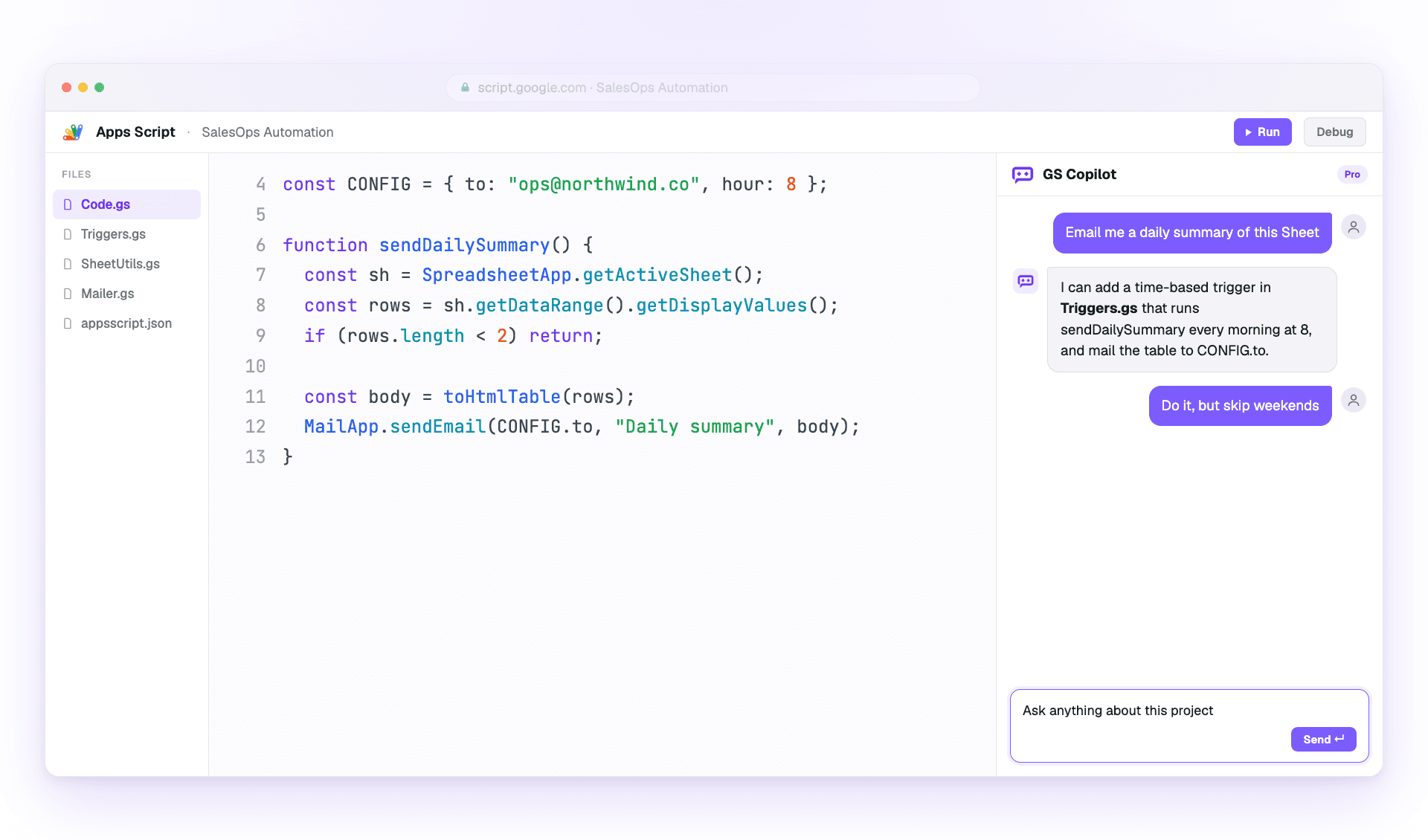
如何使用 Google Apps Script Copilot。
一份实用指南,帮助你用好 AI 编程助手:安装、四个核心功能,以及高效用户的使用习惯。
安装、登录,90 秒开始交付。
两步搞定。无需配置文件。无需 CLI。你现有的 Google 账号承担大部分工作。
安装和设置
Install the Google Apps Script Copilot extension from the Chrome Web Store and sign in with the same Google account you use for Apps Script.
- Open the Chrome Web Store listing and add Google Apps Script Copilot to Chrome.
- 登录 with the Google account that owns your Apps Script projects.
- Open script.google.com and refresh the editor once after installing.
- 使用拥有你 Apps Script 项目的 Google 账号
- 授予所请求的权限,以便 IDE 面板能够加载
- 将扩展固定到工具栏,以确认它已加载
第一个项目设置
打开任意 Apps Script 项目(或新建一个)。项目加载的瞬间,Copilot 便在 IDE 内挂载侧边面板。
- Open an existing Apps Script project or create a blank one.
- Wait for the Copilot panel to appear inside the editor.
- Ask a small first question, such as explaining the active file.
- 先从小项目开始,看看上下文如何加载
- 保持文件名清晰——Copilot 会以此作为依据
- 试验时勤保存;Apps Script 会为你保留版本
你每天会用到的四个功能。
Master these and you've mastered Copilot. Each workflow is explained in plain steps so you can try it immediately.
聊天模式
Use the side panel to ask questions, debug errors, and request changes with project context already attached.
- Open the Copilot panel beside your code.
- Describe the outcome you want in one or two sentences.
- Review the answer, then ask a follow-up or apply the suggested change.
- 明确说明你想改什么
- 引用函数名,而不是粘贴代码
- Use follow-ups; Copilot remembers the thread
内联建议
Get ghost-text suggestions while you type, then accept only the parts that help.
- Place your cursor where the next code should go.
- Pause briefly so Copilot can read the surrounding context.
- Press Tab to accept or Esc to dismiss the suggestion.
- 将光标置于行尾以获得最佳上下文
- Write a short comment first when the next step is complex
- Reject suggestions freely when they do not match your intent
多文件上下文
Attach the files that matter so Copilot understands triggers, helpers, libraries, and connected services.
- Open the context picker in the panel.
- Add the files involved in the task you are working on.
- Remove files that no longer matter before asking the next question.
- Include only the files the task 真的会 touches
- Keep file names descriptive for better grounding
- Pin important files when you want them kept across the session
聊天记录与分支
Return to saved project conversations or branch from an earlier message when you want to try a different fix.
- Open chat history from the Copilot panel.
- Select the conversation that matches the project or bug.
- Fork from an older message before testing a different approach.
- 姓名 important threads so they are easier to find
- Fork before trying risky changes
- Reuse a successful thread on similar bugs
更快交付,且不带着 bug 上线。
资深用户如何在保持代码可审查的同时,把 Copilot 用到极致。
有效提示
Give Copilot the goal, the constraints, and the exact service you are using.
- Start with the outcome you want.
- Add the current error, file, function, or data shape.
- Ask for code plus a short explanation when the change is important.
- 先说结果,而非实现方式
- 调试时逐字引用错误信息
- Specify the service: SpreadsheetApp, DriveApp, or GmailApp
- 在要代码的同时也请它解释
代码质量和安全
Treat AI output like a teammate's draft: useful, fast, and worth reviewing before it ships.
- Read the generated code before applying it.
- Run the smallest safe test you can.
- Move secrets into PropertiesService instead of prompts or source code.
- 先在表格的副本上测试
- Validate every external input from forms or URL params
- Keep changes small enough to review
- Never paste secrets into a prompt