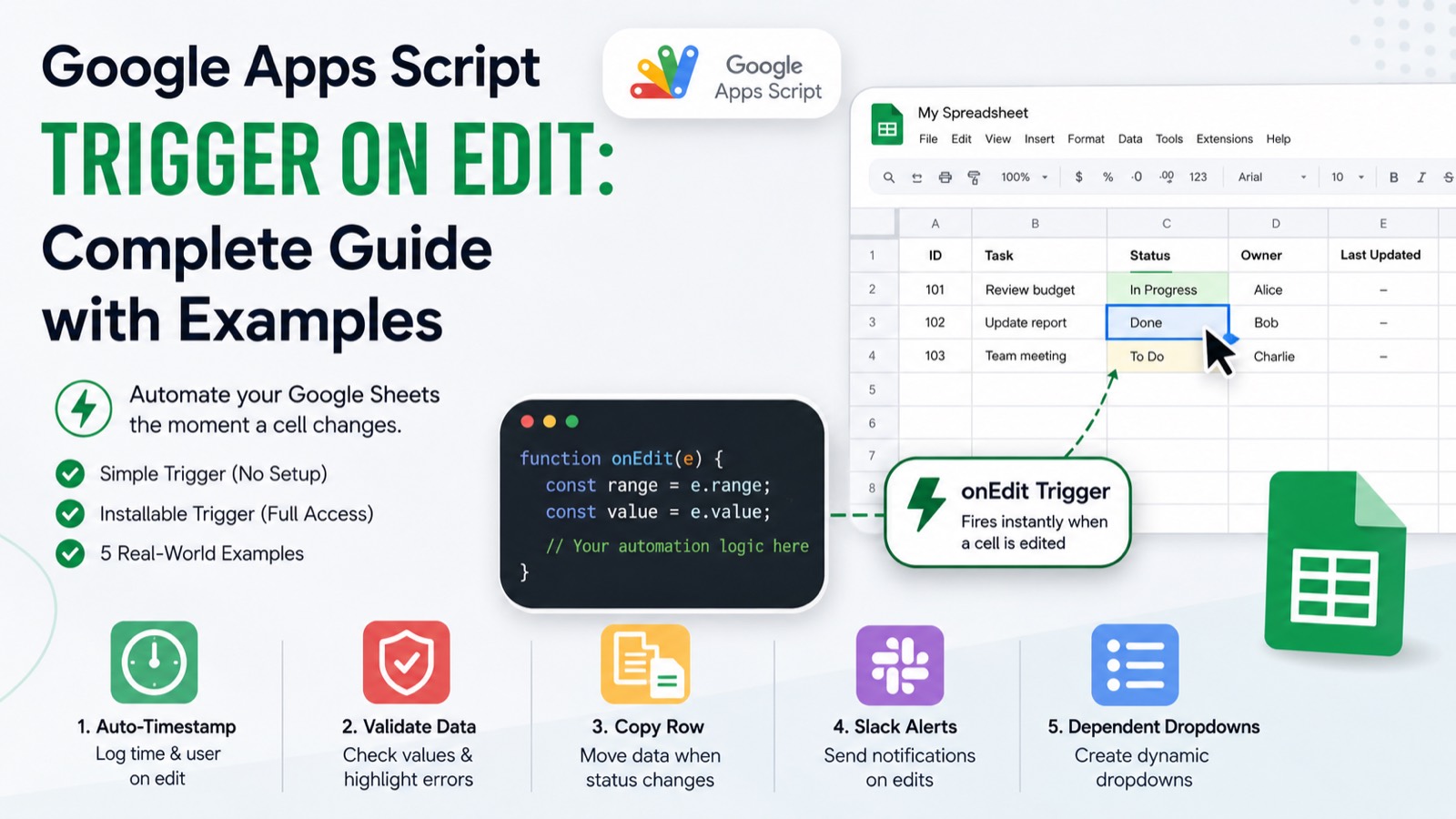
The Apps Script trigger on edit fires every time a user changes a cell in your Google Sheet. With two lines of code you can log the change, validate the input, send a notification, or kick off an entire workflow — all without leaving the browser. This guide covers everything: how the simple onEdit trigger works, when you need an installable trigger instead, common pitfalls, and five ready-to-use code examples.
#What is an onEdit Trigger in Google Apps Script?
An onEdit trigger is a function that Google Apps Script runs automatically whenever a cell value changes in a spreadsheet. You don't call it yourself — Google calls it for you, passing an event object (usually written as e) that tells you exactly what changed: the new value, the old value, the row, the column, and the sheet name.
There are two flavors: the simple trigger and the installable trigger. They look almost identical in code, but they have very different permissions and behaviors. Choosing the wrong one is the most common reason onEdit stops working.
#Simple Trigger vs Installable Trigger: The Key Difference
A simple trigger is any function you name exactly onEdit. It runs with the same permissions as the user currently viewing the sheet, requires no authorization dialog, and activates the instant a cell is edited. The downside: it cannot access services that require authorization — so no sending email, no writing to Drive, no calling external APIs.
An installable trigger is one you register through the Apps Script UI or via ScriptApp.newTrigger(). It runs under the account of the person who installed it, so it can do everything a simple trigger cannot — send Gmail, update Calendar, post to Slack. You pay for that power with an extra setup step and a short delay (usually under a second).
> Rule of thumb: if your onEdit function only reads and writes cells, use a simple trigger. The moment it touches anything outside the spreadsheet, switch to an installable trigger.
#The onEdit Event Object (e) Explained
Both trigger types receive the same event object. Understanding its properties is essential before writing any real logic.
function onEdit(e) {
  const range   = e.range;          // The cell or range that was edited
  const sheet   = range.getSheet(); // The Sheet object
  const row     = range.getRow();   // Row number (1-indexed)
  const col     = range.getColumn(); // Column number (1-indexed)
  const newVal  = e.value;          // New cell value (string)
  const oldVal  = e.oldValue;       // Previous value (undefined if cell was empty)
  const sheetName = sheet.getName(); // e.g. "Sheet1"

  Logger.log(`Edited ${sheetName} R${row}C${col}: '${oldVal}' → '${newVal}'`);
}
One gotcha: e.value is always a string. If the user typed 42, you get '42'. Parse it with Number() or parseInt() before doing any arithmetic. Also, e.oldValue is undefined when the cell was previously blank — always guard against that.
#Example 1: Log Every Edit to a History Sheet
This is the simplest useful pattern — a running audit trail of every change made to your spreadsheet, with a timestamp and the editor's email.
function onEdit(e) {
  const ss      = e.source;
  const logSheet = ss.getSheetByName('Edit Log') || ss.insertSheet('Edit Log');
  const range   = e.range;
  const sheet   = range.getSheet();

  // Skip logging changes made to the log sheet itself
  if (sheet.getName() === 'Edit Log') return;

  logSheet.appendRow([
    new Date(),                          // Timestamp
    Session.getActiveUser().getEmail(), // Editor
    sheet.getName(),                    // Sheet name
    range.getA1Notation(),              // Cell address, e.g. 'B4'
    e.oldValue || '(empty)',            // Previous value
    e.value    || '(empty)'             // New value
  ]);
}
Paste this into your script file, save, and start editing cells. The 'Edit Log' sheet appears automatically on the first edit. No setup required — this is a simple trigger, so it needs no authorization.
#Example 2: Validate Input and Reject Invalid Values
Simple triggers can write back to the sheet, which makes them perfect for lightweight validation. Here, column C on 'Orders' must always be a positive number. Any other input gets reverted with an alert.
function onEdit(e) {
  const range = e.range;
  const sheet = range.getSheet();

  // Only validate column C on the Orders sheet
  if (sheet.getName() !== 'Orders' || range.getColumn() !== 3) return;

  const val = Number(e.value);

  if (isNaN(val) || val <= 0) {
    // Revert to old value (or clear the cell)
    range.setValue(e.oldValue || '');
    SpreadsheetApp.getUi().alert(
      `Invalid quantity: '${e.value}'. Please enter a positive number.`
    );
  }
}
The early return on the first line is critical for performance. Without it, the function runs for every edit across the entire spreadsheet, even ones you don't care about. Always filter by sheet name and column or row before doing any real work.
#Example 3: Auto-Stamp a Timestamp When a Row Is Updated
A very common request: whenever someone fills in column B, automatically write the current date and time into column A of the same row. This pattern works for status updates, form responses, or task trackers.
function onEdit(e) {
  const range = e.range;
  const sheet = range.getSheet();

  // Only react to edits in column B (Status column)
  if (sheet.getName() !== 'Tasks' || range.getColumn() !== 2) return;
  if (!e.value) return; // Don't stamp if the cell was cleared

  // Write timestamp to column A, same row
  sheet
    .getRange(range.getRow(), 1)
    .setValue(new Date())
    .setNumberFormat('yyyy-MM-dd HH:mm:ss');
}#Example 4: Send an Email When a Cell Changes (Installable Trigger)
This requires an installable trigger because GmailApp.sendEmail() needs authorization. First, set up the trigger programmatically — run this function once from the Apps Script editor:
// Run this once to install the trigger
function installTrigger() {
  const ss = SpreadsheetApp.getActiveSpreadsheet();
  ScriptApp.newTrigger('onEditInstallable')
    .forSpreadsheet(ss)
    .onEdit()
    .create();
}

// Your actual handler — can now use GmailApp, DriveApp, etc.
function onEditInstallable(e) {
  const range = e.range;
  const sheet = range.getSheet();

  // Watch for 'Approved' in column D of the Contracts sheet
  if (sheet.getName() !== 'Contracts' || range.getColumn() !== 4) return;
  if (e.value !== 'Approved') return;

  const row         = range.getRow();
  const contractName = sheet.getRange(row, 1).getValue(); // Column A = name
  const clientEmail  = sheet.getRange(row, 2).getValue(); // Column B = email

  GmailApp.sendEmail(
    clientEmail,
    `Your contract '${contractName}' has been approved`,
    `Hi,\n\nGreat news — your contract has been approved and is now active.\n\nThanks,\nThe Team`
  );
}
After running installTrigger() once, delete it or comment it out. You can verify the trigger was created by going to Extensions → Apps Script → Triggers (the alarm clock icon in the left sidebar). You'll see onEditInstallable listed there.
#Example 5: Sync a Row to Another Sheet on Edit
When a row's status in 'Pipeline' is changed to 'Closed', copy the entire row to an 'Archive' sheet and delete it from Pipeline. This is a simple trigger because it only touches the spreadsheet.
function onEdit(e) {
  const range = e.range;
  const sheet = range.getSheet();

  if (sheet.getName() !== 'Pipeline' || range.getColumn() !== 5) return; // Column E = Status
  if (e.value !== 'Closed') return;

  const ss      = e.source;
  const archive = ss.getSheetByName('Archive') || ss.insertSheet('Archive');
  const row     = range.getRow();
  const lastCol = sheet.getLastColumn();

  // Copy the entire row to Archive
  const rowData = sheet.getRange(row, 1, 1, lastCol).getValues();
  archive.appendRow(rowData[0]);

  // Delete from Pipeline
  sheet.deleteRow(row);
}
> Never call getValues() or setValues() inside a loop when you can batch the read and write outside it. Every service call to the Sheets API costs time — batch calls are 10–100× faster.
#Common onEdit Trigger Problems (and How to Fix Them)
The trigger isn't running at all — make sure the function is named exactly onEdit (no typos, no capital E). Simple triggers will not run if the script file has any syntax errors, even in an unrelated function. Open the Apps Script editor and check the console for red errors.
The trigger runs but throws an authorization error — you're calling an authorized service (Gmail, Drive, Calendar) from a simple trigger. Convert to an installable trigger using the installTrigger() pattern shown in Example 4.
The trigger fires twice — you likely have both a simple onEdit function and an installed trigger pointing at the same handler. Check your triggers list and delete the duplicate.
e.value is undefined — this happens when the edit was triggered by a script (e.g., setValue() calls), not by a human typing. Apps Script does not fire onEdit for programmatic changes, only for user edits in the browser.
#onEdit Trigger Quotas to Know
Google Apps Script enforces execution time limits. A single trigger execution cannot run longer than 30 seconds (6 minutes for some Workspace accounts). If your onEdit function does heavy work — large data reads, external API calls — it will time out. Keep onEdit handlers fast: read only what you need, write only what changed, and offload long tasks to a time-based trigger that processes a queue.
#Write Your onEdit Trigger in One Prompt
Every example in this guide was written and tested the way most Apps Script developers now work: describe what you want in plain English, get working code back instantly. Google Apps Script Copilot is a browser-native AI built specifically for Apps Script — it knows the event object, the quota limits, and the installable vs simple trigger distinction so you don't have to memorize any of it. Free to try, no install required.