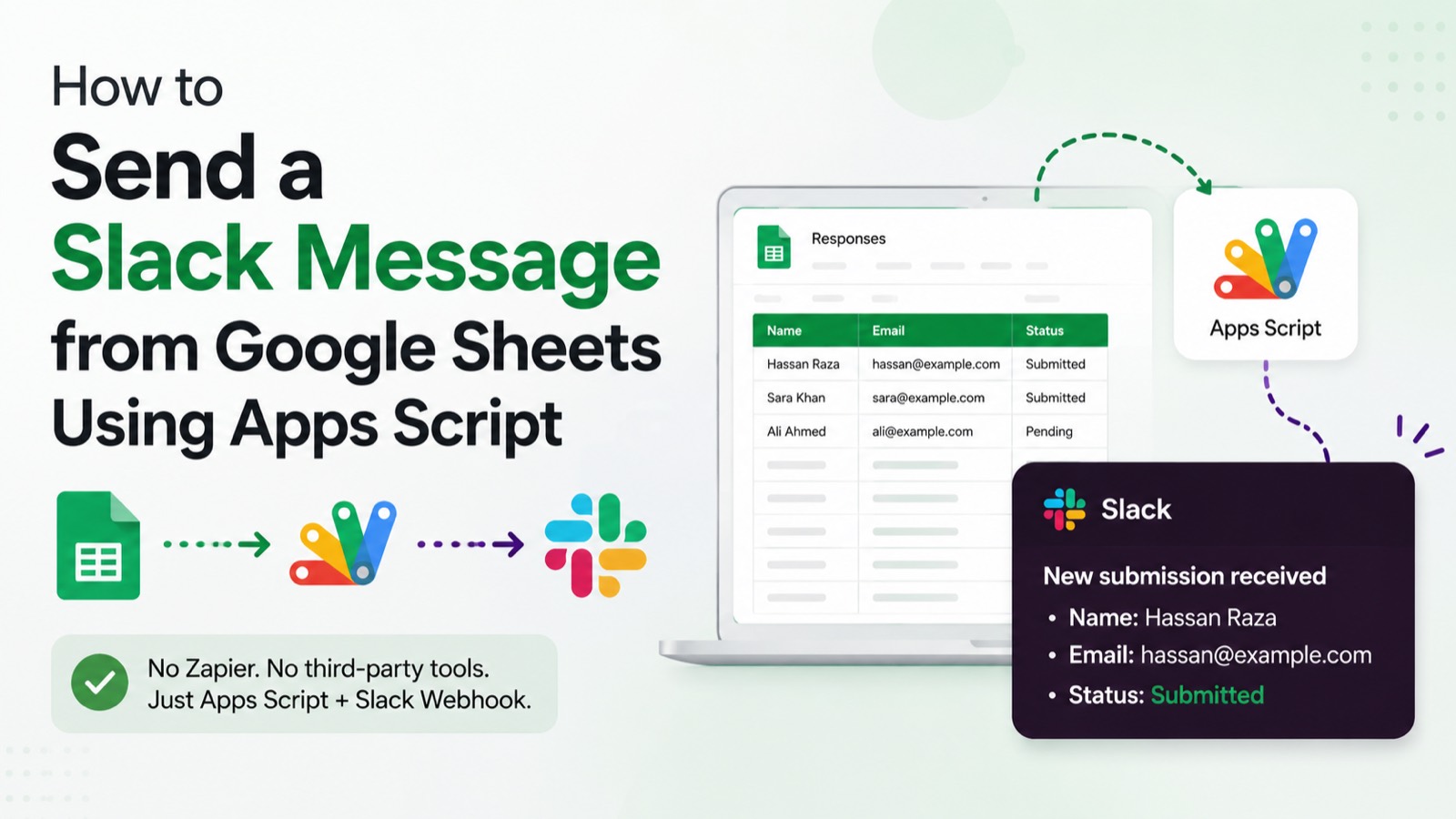
You want Slack notifications fired from a Google Sheet — when a row is submitted, a status changes, or a deadline is overdue. Apps Script can do this natively using Slack's Incoming Webhooks. No Zapier subscription, no external service, no ongoing cost. This guide covers the full setup in under 15 minutes: creating your Slack webhook, writing the script, and wiring it to a trigger so it runs automatically.
#Step 1 — Create a Slack Incoming Webhook
Slack's Incoming Webhooks give you a URL that accepts a POST request and drops a message into any channel you choose. Here's how to get one:
- Go to the Slack app dashboard and click Create New App. Choose From scratch, give it a name (e.g. 'Sheets Bot'), and pick your workspace. 2. In the left sidebar, click Incoming Webhooks and toggle it on. 3. Click Add New Webhook to Workspace, choose the channel you want messages posted to, and click Allow. 4. Copy the unique webhook URL Slack gives you. Keep this safe; you'll paste it into your script next.
> Never paste your webhook URL directly in the script if you share that sheet. Use PropertiesService to store it as a secret instead.
#Step 2 — Store the Webhook URL Safely with PropertiesService
Before writing the main function, store the webhook URL as a script property so it isn't exposed in plain text. Open your Script Editor (Extensions → Apps Script), then run this once to save it:
function setWebhookUrl() {
  PropertiesService
    .getScriptProperties()
    .setProperty('SLACK_WEBHOOK_URL', 'https://hooks.slack.com/services/YOUR/WEBHOOK/URL');
}
Run setWebhookUrl() once from the editor. After that, delete or comment it out — the value is stored permanently in your script's properties and you can retrieve it any time with getProperty('SLACK_WEBHOOK_URL').
#Step 3 — Write the sendSlackMessage Function
This is the core function. It takes a message string, builds the JSON payload Slack expects, and sends it via UrlFetchApp — Apps Script's built-in HTTP client.
function sendSlackMessage(message) {
  const webhookUrl = PropertiesService
    .getScriptProperties()
    .getProperty('SLACK_WEBHOOK_URL');

  const payload = JSON.stringify({ text: message });

  const options = {
    method: 'post',
    contentType: 'application/json',
    payload: payload
  };

  const response = UrlFetchApp.fetch(webhookUrl, options);

  if (response.getResponseCode() !== 200) {
    throw new Error('Slack message failed: ' + response.getContentText());
  }
}
Test it from the editor by calling sendSlackMessage('Hello from Google Sheets!'). If your webhook is set up correctly, the message appears in your chosen Slack channel within seconds.
#Step 4 — Read Data from Your Sheet and Build the Message
Now let's make it useful. This example reads the last submitted row from a Sheet and formats it into a Slack notification. Adjust column indices to match your own sheet structure.
function notifySlackOnNewRow() {
  const sheet = SpreadsheetApp
    .getActiveSpreadsheet()
    .getSheetByName('Responses');

  const lastRow = sheet.getLastRow();

  // Assuming columns: A = Name, B = Email, C = Status
  const name   = sheet.getRange(lastRow, 1).getValue();
  const email  = sheet.getRange(lastRow, 2).getValue();
  const status = sheet.getRange(lastRow, 3).getValue();

  const message = `*New submission received*\n• Name: ${name}\n• Email: ${email}\n• Status: ${status}`;

  sendSlackMessage(message);
}
Slack renders the asterisks as bold and the newlines as line breaks, so the message arrives clean and readable. You can extend this with Slack's Block Kit for richer formatting — buttons, sections, and images — but plain text is enough to get started.
#Step 5 — Trigger It Automatically on Form Submit or Edit
Running this manually isn't automation. Wire it to a trigger so it fires on its own. The two most common setups are: on form submit (fires when a linked Google Form gets a new response) and on edit (fires whenever any cell in the sheet changes).
To set up a trigger via the UI: go to Extensions → Apps Script → Triggers (alarm clock icon) → Add Trigger. Set the function to notifySlackOnNewRow, the event source to From spreadsheet, and the event type to On form submit or On edit, depending on your use case.
Or set it up programmatically — which is reproducible and version-controllable:
function createFormSubmitTrigger() {
  const ss = SpreadsheetApp.getActiveSpreadsheet();

  ScriptApp.newTrigger('notifySlackOnNewRow')
    .forSpreadsheet(ss)
    .onFormSubmit()
    .create();
}
Run createFormSubmitTrigger() once. From that point on, every new form submission automatically sends a Slack message. You can verify it was created under Triggers in the Apps Script editor.
#Sending Richer Slack Messages with Block Kit
For a more polished notification — with bold headers, dividers, and clickable links — swap plain text for a Block Kit payload. Replace the payload line in sendSlackMessage with a blocks array:
function sendRichSlackMessage(name, email, status, sheetUrl) {
  const webhookUrl = PropertiesService
    .getScriptProperties()
    .getProperty('SLACK_WEBHOOK_URL');

  const payload = JSON.stringify({
    blocks: [
      {
        type: 'header',
        text: { type: 'plain_text', text: '📋 New Submission Received' }
      },
      {
        type: 'section',
        fields: [
          { type: 'mrkdwn', text: `*Name:*\n${name}` },
          { type: 'mrkdwn', text: `*Email:*\n${email}` },
          { type: 'mrkdwn', text: `*Status:*\n${status}` }
        ]
      },
      {
        type: 'actions',
        elements: [
          {
            type: 'button',
            text: { type: 'plain_text', text: 'View in Sheet' },
            url: sheetUrl
          }
        ]
      }
    ]
  });

  const options = {
    method: 'post',
    contentType: 'application/json',
    payload: payload
  };

  UrlFetchApp.fetch(webhookUrl, options);
}
Pass SpreadsheetApp.getActiveSpreadsheet().getUrl() as the sheetUrl argument and the message arrives with a header, a two-column field layout, and a button that opens the sheet directly.
#Error Handling: What to Do When the Message Fails
Webhook calls can fail — the URL might be revoked, Slack might be down, or the network request might time out. Wrap your call in a try/catch and log failures so they don't disappear silently:
function notifySlackOnNewRow() {
  try {
    const sheet = SpreadsheetApp
      .getActiveSpreadsheet()
      .getSheetByName('Responses');

    const lastRow = sheet.getLastRow();
    const name   = sheet.getRange(lastRow, 1).getValue();
    const email  = sheet.getRange(lastRow, 2).getValue();
    const status = sheet.getRange(lastRow, 3).getValue();

    const message = `*New submission*\n• Name: ${name}\n• Email: ${email}\n• Status: ${status}`;

    sendSlackMessage(message);

  } catch (error) {
    console.error('Slack notification failed:', error.message);
    // Optionally: email yourself a fallback alert
    GmailApp.sendEmail(
      Session.getActiveUser().getEmail(),
      'Slack Alert Failed',
      error.message
    );
  }
}
The console.error output is visible in the Apps Script execution log (View → Executions). The fallback GmailApp.sendEmail ensures you still get alerted even when Slack itself is the problem.
#Common Issues and Fixes
Webhook returns 403 or 'No service': The webhook URL has been revoked or the Slack app was removed from the channel. Re-create the webhook and update the stored property. Trigger fires but no message arrives: Check the Executions log for errors. The most common cause is a missing or malformed SLACK_WEBHOOK_URL property — confirm it's set by logging PropertiesService.getScriptProperties().getProperty('SLACK_WEBHOOK_URL'). Message sends in editor but not on trigger: Triggers run as the user who installed them. Make sure the person who created the trigger has permission to read the sheet and that the PropertiesService property is stored at the Script level (not User level), so it's accessible regardless of who triggers it.
> Script properties are per-script, not per-user — store your webhook there, not in UserProperties, or it will be invisible when a trigger fires.
#Full Working Script (Copy-Paste Ready)
Here's everything in one block — store the webhook, send plain or rich messages, handle errors, and set up the trigger — ready to drop into any project:
// Run once to store your webhook URL
function setup() {
  PropertiesService
    .getScriptProperties()
    .setProperty('SLACK_WEBHOOK_URL', 'https://hooks.slack.com/services/YOUR/WEBHOOK/URL');

  // Create the form-submit trigger
  const ss = SpreadsheetApp.getActiveSpreadsheet();
  ScriptApp.newTrigger('notifySlackOnNewRow')
    .forSpreadsheet(ss)
    .onFormSubmit()
    .create();

  console.log('Setup complete.');
}

// Sends a plain-text message to Slack
function sendSlackMessage(message) {
  const webhookUrl = PropertiesService
    .getScriptProperties()
    .getProperty('SLACK_WEBHOOK_URL');

  const options = {
    method: 'post',
    contentType: 'application/json',
    payload: JSON.stringify({ text: message })
  };

  const response = UrlFetchApp.fetch(webhookUrl, options);

  if (response.getResponseCode() !== 200) {
    throw new Error('Slack API error: ' + response.getContentText());
  }
}

// Fires on every new form submission
function notifySlackOnNewRow() {
  try {
    const sheet = SpreadsheetApp
      .getActiveSpreadsheet()
      .getSheetByName('Responses');

    const lastRow = sheet.getLastRow();
    const name   = sheet.getRange(lastRow, 1).getValue();
    const email  = sheet.getRange(lastRow, 2).getValue();
    const status = sheet.getRange(lastRow, 3).getValue();

    const message =
      `*New submission received* 🎉\n` +
      `• *Name:* ${name}\n` +
      `• *Email:* ${email}\n` +
      `• *Status:* ${status}`;

    sendSlackMessage(message);

  } catch (err) {
    console.error('Notification failed:', err.message);
    GmailApp.sendEmail(
      Session.getActiveUser().getEmail(),
      'Slack Notification Failed',
      err.message
    );
  }
}#What to Build Next
Now that you can push messages from Sheets to Slack, a few natural extensions: alert a channel when a row's status column changes to 'Overdue', send a daily digest summary by combining a time-based trigger with a loop over all rows, or post to different channels based on a value in the sheet (use an if/else to pick between two webhook URLs stored as separate properties). For the time-based trigger approach, see our guide on how to schedule a Google Apps Script to run automatically.
GS Copilot generates scripts like these from a single prompt — describe what you want in plain English and get the full, tested code back in seconds. Free to try, no install required.