All posts
Blog / Guide
Guide

Google Apps Script Error Handling: Try/Catch Best Practices

A practical guide to Apps Script error handling try catch, with copy-paste-ready Apps Script examples, trigger notes, error handling, and production tips.

Google Apps Script Error Handling: Try/Catch Best Practices

Google Apps Script Error Handling: Try/Catch Best Practices gives you a practical way to build the workflow inside Google Workspace. The short answer: write one focused Apps Script function, keep credentials in PropertiesService, test manually once, then attach the right trigger after the script works.

What You Are Building

You will build the workflow with copy-paste-ready Apps Script. The examples use built-in services where possible and UrlFetchApp when an external API is involved.

Step 1: Prepare the Project

Use a predictable sheet structure, headers in row 1, one record per row, and no merged cells in ranges the script reads. Store API keys, webhook URLs, and account IDs as script properties instead of hard-coding them.

function setupProperties() {
  PropertiesService.getScriptProperties().setProperties({
    API_KEY: 'paste-key-here',
    WEBHOOK_URL: 'https://example.com/webhook'
  });
}

Step 2: Write the Core Function

Keep the first version small. Make one clear action work before adding loops, triggers, retries, or formatting.

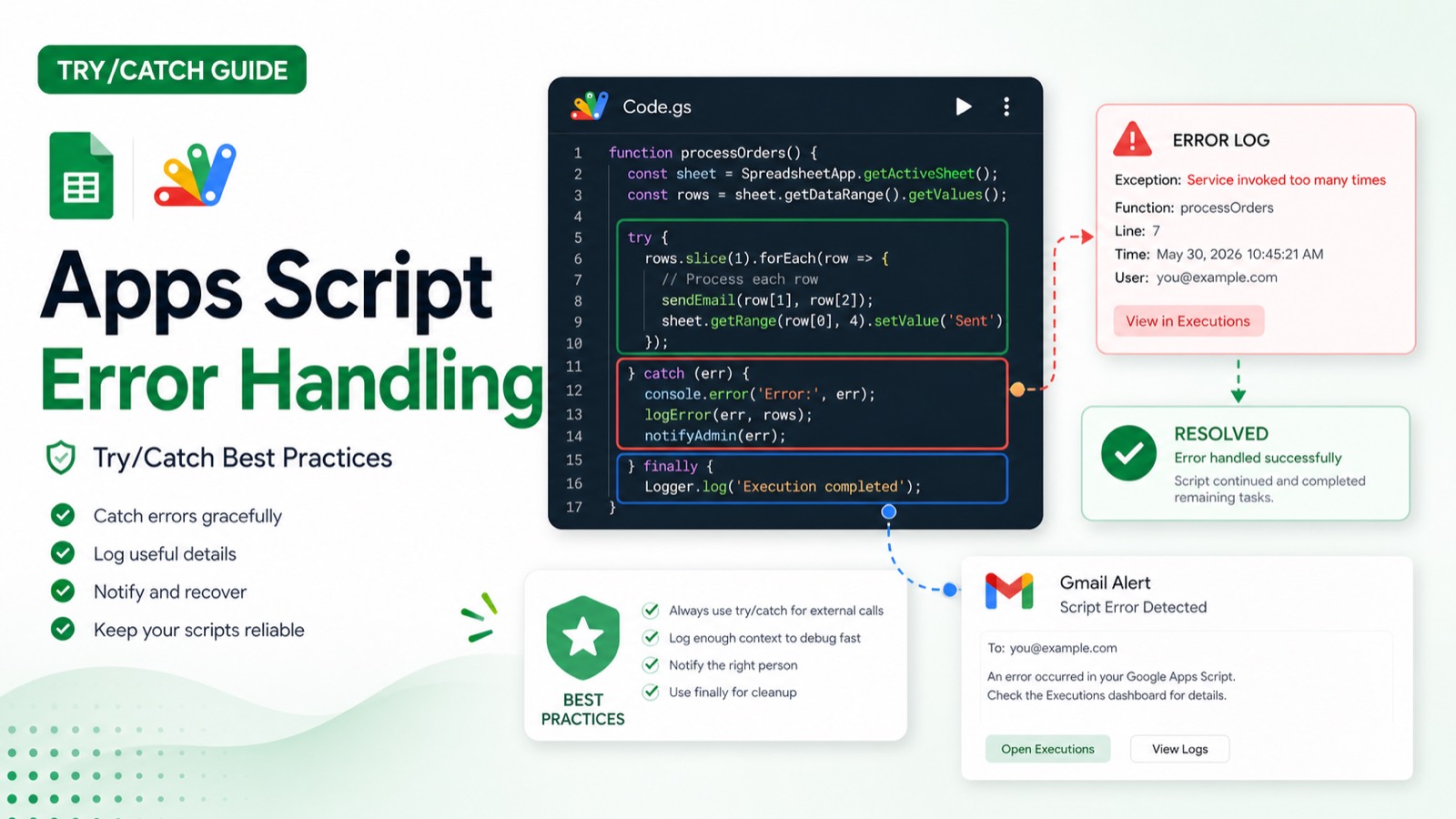
function runSafely() {
  try {
    syncOrders();
  } catch (err) {
    console.error('Sync failed', err.stack || err.message);
    GmailApp.sendEmail(Session.getActiveUser().getEmail(), 'Apps Script failed', err.stack || err.message);
    throw err;
  }
}

Step 3: Add Validation and Error Handling

Check required inputs, check external API response codes, and log the row number or record ID involved in the failure. For user-facing jobs, send yourself a fallback email when a trigger fails.

function requireValue(value, label) {
  if (value === '' || value === null || value === undefined) throw new Error('Missing required value: ' + label);
  return value;
}

Step 4: Run It Automatically

Use on-edit or on-form-submit triggers for event-driven workflows, and time-based triggers for imports, reports, summaries, reminders, and cleanup jobs. Installable triggers are usually best for real projects because they run with the permissions granted by the trigger owner.

function createDailyTrigger() {
  ScriptApp.newTrigger('main').timeBased().everyDays(1).atHour(8).create();
}

Common Issues

Authorization errors mean the function needs to be run manually once. Empty output usually means the sheet name, range, or column index is wrong. Repeated sends usually mean you forgot a Processed or Sent flag. Slow scripts usually mean you are reading or writing one cell at a time instead of batching ranges.

Production Notes

Before you rely on this workflow, make the script idempotent. Add a status column such as Processed, Sent, Exported, or Synced, and write that status only after the action succeeds. That single column prevents duplicate emails, repeated API calls, duplicate files, and confusing follow-up work when a trigger retries or someone edits the same row twice.

For larger sheets, read and write in batches. Apps Script is much faster when you call getValues once, work with arrays in memory, and call setValues once. Avoid loops that call getRange for every row unless the sheet is tiny. That habit is the difference between a script that finishes comfortably and one that times out.

Security and Permissions

Keep secrets in PropertiesService, never in a shared sheet cell or visible code comment. If several people maintain the automation, document which account owns the trigger and which Google services the script needs. When permissions change, re-run the function manually from the editor so Apps Script can request any new scopes.

Testing Checklist

Test with one row first, then with three rows that cover the normal case, an empty value, and a value that should be skipped. Open the Executions page after each run and confirm there are no hidden errors. Only after that should you enable the trigger for the real sheet.

What to Build Next

Once this works, connect it to Apps Script triggers so the automation runs at the right moment without manual clicks.

How to Use This Reference

Copy the smallest snippet that solves the problem, then rename the sheet, range, property keys, and function names before you run it. Apps Script examples are easiest to maintain when the code reads like the workflow: get pending rows, build the payload, send the request, mark the row complete.

Common Pitfalls

The most common mistakes are using active sheets when a named sheet is safer, writing one cell at a time, storing secrets in visible places, and creating triggers before the function works manually. Fix those four habits and most Apps Script projects become easier to debug.

Google Apps Script Copilot writes this in one prompt - free to try.

Written by Hassan Raza
Founder of GS Copilot · GS Copilot

The team is small enough that you can usually reply to a post and get the actual writer. Try it — send us a note.