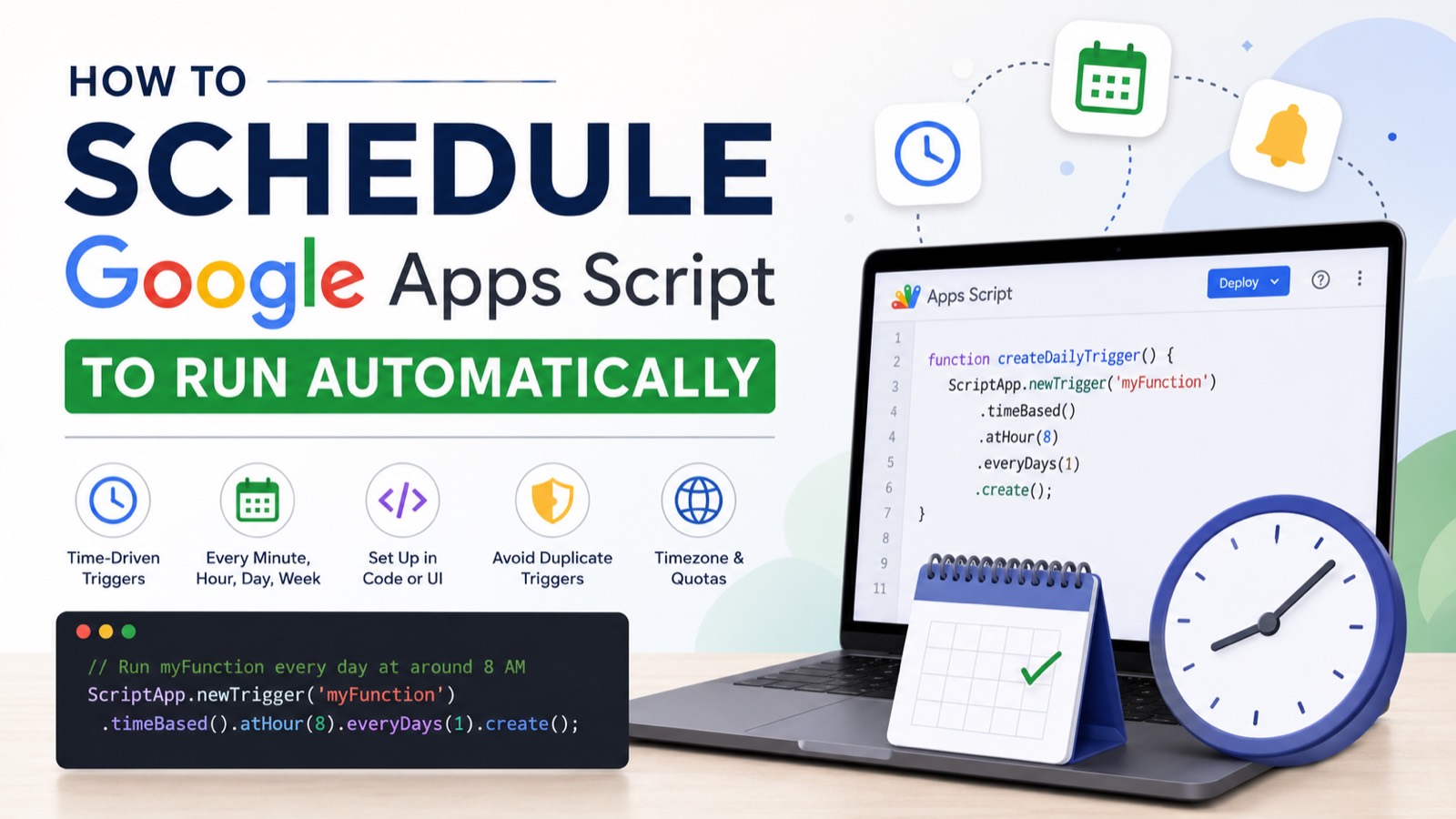
To run a Google Apps Script automatically on a schedule, you create a time-driven trigger. This is the Apps Script equivalent of a cron job: it tells Google to call one of your functions every few minutes, every hour, every day, or on a specific weekday — with no one sitting at the keyboard.
You can set it up in two ways: through the Triggers page in the editor (point-and-click), or in code with ScriptApp.newTrigger() — better for anything you want to version, share, or re-deploy.
Here's the shortest possible version. This runs myFunction once every day at around 8 AM:
function createDailyTrigger() {
  ScriptApp.newTrigger('myFunction')
    .timeBased()
    .atHour(8)
    .everyDays(1)
    .create();
}
Run createDailyTrigger once, approve the permissions, and you're done. The rest of this guide covers the UI method, every schedule type you'll need, how to avoid the most common bug (duplicate triggers), and the timezone and quota gotchas that trip people up.
#Method 1: Schedule a Script from the Triggers Page (No Code)
If you only need a simple recurring schedule, the editor UI is the fastest route. Open your Apps Script project, click the clock icon (Triggers) in the left sidebar, then click + Add Trigger in the bottom right.
Configure the trigger: choose which function to run, set the event source to Time-driven, pick the type (Minutes timer, Hour timer, Day timer, Week timer), and set the interval. Click Save and approve the authorization prompt.
> UI triggers don't travel when you copy the project — for anything reusable, set them up in code.
#Method 2: Create a Time-Driven Trigger in Code
The ScriptApp service builds triggers programmatically. The pattern is always the same: name the function, call .timeBased(), chain the schedule, then .create().
#Run every N minutes
The cron-style classic. Valid values for everyMinutes() are 1, 5, 10, 15, and 30 — Google does not allow arbitrary minute counts.
function createMinuteTrigger() {
  ScriptApp.newTrigger('myFunction')
    .timeBased()
    .everyMinutes(5)
    .create();
}#Run every N hours
function createHourlyTrigger() {
  ScriptApp.newTrigger('myFunction')
    .timeBased()
    .everyHours(6)
    .create();
}#Run once a day at a set hour
atHour() takes a 0–23 value. The script runs within that hour window, not at the exact minute.
function createDailyTrigger() {
  ScriptApp.newTrigger('sendDailyReport')
    .timeBased()
    .atHour(9)        // ~9 AM in the script's timezone
    .everyDays(1)
    .create();
}#Run on a specific weekday
Use onWeekDay() with the ScriptApp.WeekDay enum. This fires every Monday at around 8 AM:
function createWeeklyTrigger() {
  ScriptApp.newTrigger('weeklyDigest')
    .timeBased()
    .onWeekDay(ScriptApp.WeekDay.MONDAY)
    .atHour(8)
    .create();
}#Run once at a specific date and time
For a one-off job — say, a launch reminder — pass a Date object to .at():
function createOneTimeTrigger() {
  const runAt = new Date('2026-12-25T08:00:00');
  ScriptApp.newTrigger('holidayJob')
    .timeBased()
    .at(runAt)
    .create();
}#Stop Creating Duplicate Triggers (The #1 Bug)
Here's the trap: every time you run a function that calls .create(), Apps Script adds another trigger. Run your setup function five times during testing and you now have five copies of the same schedule firing in parallel. People discover this when their "daily" email arrives six times.
> Every call to .create() adds a new trigger — it never replaces the old one. Always delete before you recreate.
The fix is to clear existing triggers for that function before creating a new one. This helper deletes any trigger pointing at a given handler, then sets up exactly one:
function setupTrigger() {
  const handlerName = 'myFunction';

  // Remove existing triggers for this handler
  const triggers = ScriptApp.getProjectTriggers();
  for (const trigger of triggers) {
    if (trigger.getHandlerFunction() === handlerName) {
      ScriptApp.deleteTrigger(trigger);
    }
  }

  // Create one fresh trigger
  ScriptApp.newTrigger(handlerName)
    .timeBased()
    .everyHours(1)
    .create();
}
Make setupTrigger your single source of truth. Run it whenever you want to reinstall the schedule, and you'll never end up with duplicates.
#Set the Right Timezone
Time-driven triggers fire according to your script's timezone, not your browser's. If atHour(8) is firing at the wrong time, the project timezone is almost always the reason.
Check and change it under Project Settings (the gear icon) → Time zone, or set it directly in the appsscript.json manifest:
{
  "timeZone": "America/New_York"
}
Use a valid IANA timezone identifier like Europe/London or Asia/Kolkata. After changing it, re-run your setup function so existing triggers pick up the new zone.
#A Note on Precision
Apps Script triggers are approximate, not exact. An hourly trigger fires somewhere inside the hour; atHour(8) fires somewhere between 8:00 and 9:00. Google batches and distributes triggers across its infrastructure, so you cannot guarantee a script runs at exactly 8:00:00.
If you need minute-level precision, schedule an everyMinutes(5) trigger and have the function check the current time, exiting early if it isn't the window you want:
function preciseJob() {
  const now = new Date();
  if (now.getHours() === 8 && now.getMinutes() < 5) {
    // do the work only in the 8:00–8:05 window
    doTheActualWork();
  }
}#Watch Your Trigger Quotas
Time-driven triggers consume two limited resources, and exceeding either gets your triggers silently disabled: up to 20 triggers per user per script, and roughly 90 minutes of total runtime per day on consumer Gmail accounts (6 hours on Google Workspace).
> A script that runs every minute and takes 30 seconds each time burns 12 hours of runtime per day — well over any quota.
When a trigger fails, Google emails the script owner a failure summary. Keep an eye on that inbox while you're dialing things in.
#You're Now Scheduling Like a Cron Job
You can now run any Apps Script on autopilot: every few minutes, hourly, daily, weekly, or at a one-off moment — set up either through the UI or in code. Build your schedule with a single idempotent setupTrigger function, confirm your project timezone, and stay inside your runtime quota, and your automation will run reliably without you ever opening the editor again.
Writing trigger setup code by hand gets repetitive fast. Google Apps Script Copilot writes this in one prompt — free to try. Describe the schedule you want in plain English and it generates the tested, duplicate-safe trigger code for you.