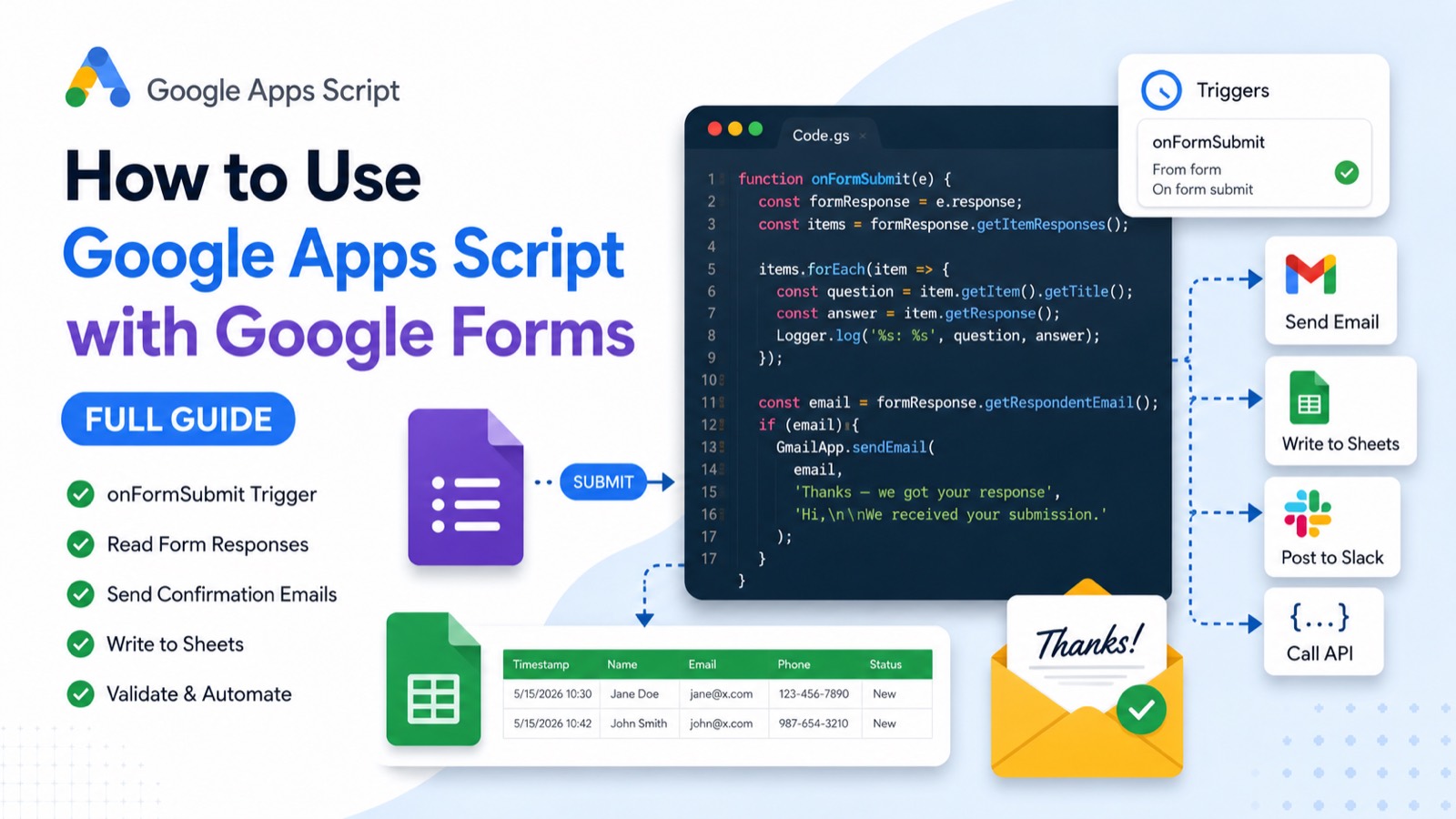
Google Apps Script lets you run custom code every time someone submits a Google Form. The key is the onFormSubmit trigger: you write a function, attach it to your form as an installable trigger, and it fires automatically on each submission. From there you can email the respondent, log answers to a Sheet, post to Slack, validate input, or call any API.
The fastest setup looks like this:
function onFormSubmit(e) {
  const itemResponses = e.response.getItemResponses();
  itemResponses.forEach(item => {
    Logger.log('%s → %s', item.getItem().getTitle(), item.getResponse());
  });
}
That's the whole idea. The rest of this guide shows you exactly how to attach that function as a trigger, read responses two different ways, send a confirmation email, and avoid the two mistakes that trip up almost everyone the first time.
#Form-Bound vs. Standalone Apps Script Projects
There are two ways to attach Apps Script to a Google Form, and the difference changes how your event object behaves.
A form-bound script lives inside the form itself. Open your form, click the three-dot menu, choose Apps Script, and you get an editor already connected to that form via FormApp.getActiveForm(). This is the simplest option for most automations.
A standalone or Sheet-bound script lives in a separate project (or in the response spreadsheet). You reach the form by ID with FormApp.openById('FORM_ID'). Use this when one project manages several forms or when your logic belongs with the response sheet.
> For this guide we'll use a form-bound script — the trigger setup is cleanest there, and it's the right starting point for almost every use case.
#Step 1: Open the Apps Script Editor from Your Form
In your Google Form, click the three-dot menu in the top right and select Apps Script. A new editor tab opens with an empty Code.gs file. Everything below goes in this file.
To grab a reference to the active form anywhere in your code:
function getForm() {
  return FormApp.getActiveForm();
}#Step 2: Understand the onFormSubmit Trigger Event Object
When a submission fires your trigger, Apps Script passes an event object (conventionally named e) to your function. What's inside e depends on where your script is bound.
A form-bound script gives you a FormResponse object:
function onFormSubmit(e) {
  const formResponse = e.response;            // FormResponse object
  const items = formResponse.getItemResponses();

  items.forEach(itemResponse => {
    const question = itemResponse.getItem().getTitle();
    const answer = itemResponse.getResponse();
    Logger.log('%s: %s', question, answer);
  });

  // Respondent email, if your form collects it:
  Logger.log('Submitted by: %s', formResponse.getRespondentEmail());
}
A Sheet-bound script (script lives in the linked response spreadsheet) gives you a flatter object instead:
function onFormSubmit(e) {
  const rowValues = e.values;        // array of answers, in column order
  const named = e.namedValues;       // object keyed by question title

  Logger.log(rowValues);             // ['2026-01-15 10:30', 'Jane', 'jane@x.com']
  Logger.log(named['Email']);        // ['jane@x.com']  ← always an array
}
> Mixing these up is the #1 source of bugs. If your form-bound code reaches for e.values, it'll be undefined. Match the event shape to where your script lives.
#Step 3: Add the onFormSubmit Trigger
Naming a function onFormSubmit is not enough to make it run automatically. Form submit is not a simple trigger — it requires an installable trigger, which you can add through the UI or in code.
Option A — Add it in the editor (easiest): In the Apps Script editor, click the clock icon (Triggers) in the left sidebar, then + Add Trigger. Choose your function, set the event source to From form, and the event type to On form submit. Save and approve the permissions prompt.
Option B — Add it programmatically: Run this setup function once. It checks for an existing trigger first so you don't create duplicates:
function createFormSubmitTrigger() {
  const form = FormApp.getActiveForm();

  // Remove any duplicate triggers for this function first.
  ScriptApp.getProjectTriggers().forEach(t => {
    if (t.getHandlerFunction() === 'onFormSubmit') {
      ScriptApp.deleteTrigger(t);
    }
  });

  ScriptApp.newTrigger('onFormSubmit')
    .forForm(form)
    .onFormSubmit()
    .create();

  Logger.log('Trigger installed.');
}
Run createFormSubmitTrigger once from the editor (select it in the function dropdown, click Run), grant permissions, and your onFormSubmit function will now fire on every submission. You only need to do this once per form.
#Step 4: Send a Confirmation Email on Submit
Here's the most common real-world use: email the respondent the moment they submit. This assumes your form collects email addresses (enable Collect email addresses in form settings).
function onFormSubmit(e) {
  const formResponse = e.response;
  const email = formResponse.getRespondentEmail();
  if (!email) return; // No email collected — nothing to send.

  // Build a quick summary of their answers.
  let summary = '';
  formResponse.getItemResponses().forEach(item => {
    summary += `${item.getItem().getTitle()}: ${item.getResponse()}\n`;
  });

  GmailApp.sendEmail(
    email,
    'Thanks — we got your response',
    `Hi,\n\nWe received your submission:\n\n${summary}\nWe'll be in touch soon.`
  );
}#Step 5: Write Form Responses to a Sheet (with Extra Logic)
Forms can already dump responses into a Sheet, but Apps Script lets you transform them first — add a status column, a timestamp in your own format, or a calculated field. This version appends a row to a sheet named Submissions:
function onFormSubmit(e) {
  const ss = SpreadsheetApp.openById('YOUR_SHEET_ID');
  const sheet = ss.getSheetByName('Submissions');

  const responses = e.response.getItemResponses();
  const row = responses.map(item => item.getResponse());

  // Prepend a clean timestamp and a default status.
  row.unshift(new Date());
  row.push('New');

  sheet.appendRow(row);
}
Replace YOUR_SHEET_ID with the ID from your spreadsheet's URL (the long string between /d/ and /edit).
#Step 6: Validate Submissions and Flag Problems
Because your code runs after submission, you can't block a bad answer — but you can catch it and act. This example flags submissions missing a phone number and notifies an admin:
function onFormSubmit(e) {
  const named = {};
  e.response.getItemResponses().forEach(item => {
    named[item.getItem().getTitle()] = item.getResponse();
  });

  if (!named['Phone'] || named['Phone'].toString().trim() === '') {
    GmailApp.sendEmail(
      'admin@yourdomain.com',
      'Incomplete form submission',
      `Missing phone number from: ${named['Email'] || 'unknown'}`
    );
  }
}#Common Errors and How to Fix Them
"Cannot read properties of undefined (reading 'getItemResponses')" — Your script is Sheet-bound but you're using e.response. Switch to e.values / e.namedValues, or move your code into the form-bound project.
The function never runs — You named it onFormSubmit but never installed the trigger. Run the setup function from Step 3 or add the trigger via the clock icon. Simple triggers don't cover form submit.
"You do not have permission to call GmailApp.sendEmail" — Run any function manually once from the editor to trigger the authorization prompt, then approve the scopes.
Trigger fires twice — You created the trigger more than once. The dedup logic in Step 3's setup function prevents this — re-run it to clean up.
#Putting It All Together
The full pattern for a form automation is always the same three moves: write an onFormSubmit(e) function, install it as an installable trigger, and read responses using the event shape that matches where your script lives. Once that scaffold is in place, swapping in Gmail, Sheets, Slack, or an external API is just a few lines.
For automations that fire on edits rather than submissions, see our complete guide to the Apps Script on-edit trigger — the trigger model is the same, only the event source changes.
> Stop writing Apps Script trigger boilerplate by hand — Google Apps Script Copilot writes this in one prompt, free to try.