If you want to send email from Google Sheets using Apps Script, here's the short answer: use MailApp.sendEmail() or GmailApp.sendEmail() inside a script bound to your sheet. Both methods are free, require no third-party tools, and work with any Gmail account. You can trigger them manually, on a schedule, or when a row is edited — making it the go-to solution for automated notifications, reports, and alerts straight from your spreadsheet.
This guide walks you through every method with copy-paste-ready code.
#What You Need Before You Start
You need a Google account with a Google Sheet, access to Extensions → Apps Script inside that sheet, and basic familiarity with reading code — no prior JavaScript required.
Apps Script is Google's built-in scripting platform. It lives inside your Google Workspace tools and has native access to Gmail, Sheets, Drive, and Calendar — no API keys or OAuth setup needed for basic email sending.
#Method 1: Send a Simple Email from a Sheet
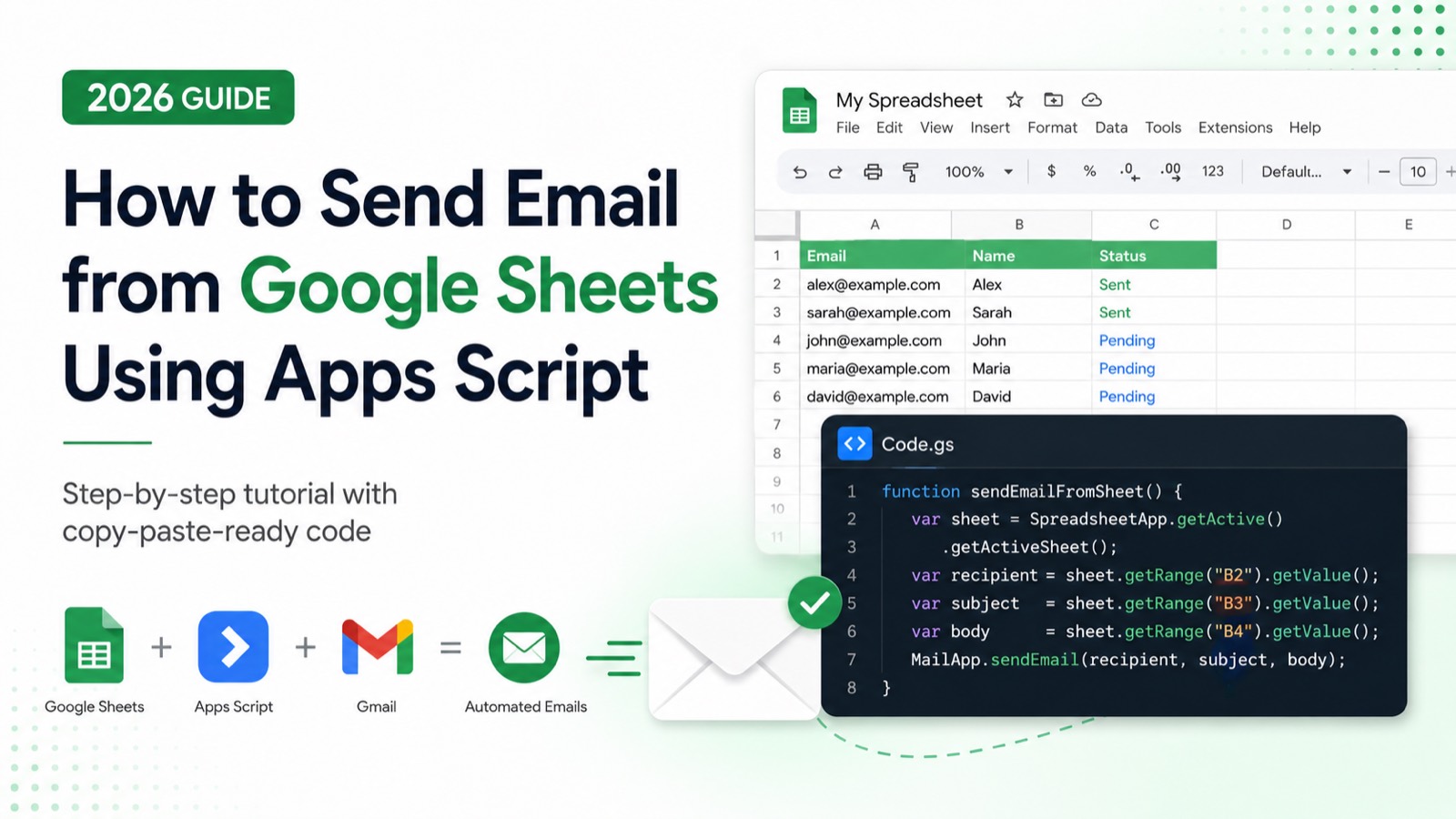
This is the fastest way to get started. Open your spreadsheet, click Extensions → Apps Script, delete any placeholder code, and paste this:
function sendEmailFromSheet() {
  var sheet = SpreadsheetApp.getActiveSpreadsheet().getActiveSheet();
  var recipient = sheet.getRange("B2").getValue(); // email address in cell B2
  var subject = sheet.getRange("B3").getValue();   // subject in cell B3
  var body = sheet.getRange("B4").getValue();      // message body in cell B4

  MailApp.sendEmail(recipient, subject, body);
}
Click Save, then click Run. The first time you run it, Google will ask for permission to access your Gmail — click Allow. Your email lands in the recipient's inbox within seconds.
> MailApp sends email using your Google account as the sender. It's simpler than GmailApp and has a daily quota of 100 emails (500 for Google Workspace accounts).
#Method 2: Send Email to Multiple Recipients from a Sheet
If you have a list of email addresses in a column, loop through each row and send to each one:
function sendBulkEmailFromSheet() {
  var sheet = SpreadsheetApp.getActiveSpreadsheet().getActiveSheet();
  var lastRow = sheet.getLastRow();

  for (var i = 2; i <= lastRow; i++) {
    var email = sheet.getRange(i, 1).getValue();   // column A: email
    var name = sheet.getRange(i, 2).getValue();    // column B: name
    var status = sheet.getRange(i, 3).getValue();  // column C: status flag

    if (status !== "Sent") {
      MailApp.sendEmail(email, "Your Update", "Hi " + name + ", here is your update.");
      sheet.getRange(i, 3).setValue("Sent");
    }
  }
}
> The status !== "Sent" check is critical — it prevents duplicate emails if you run the script more than once. Always add this guard when sending bulk email.
#Method 3: Send an HTML Email from Google Sheets
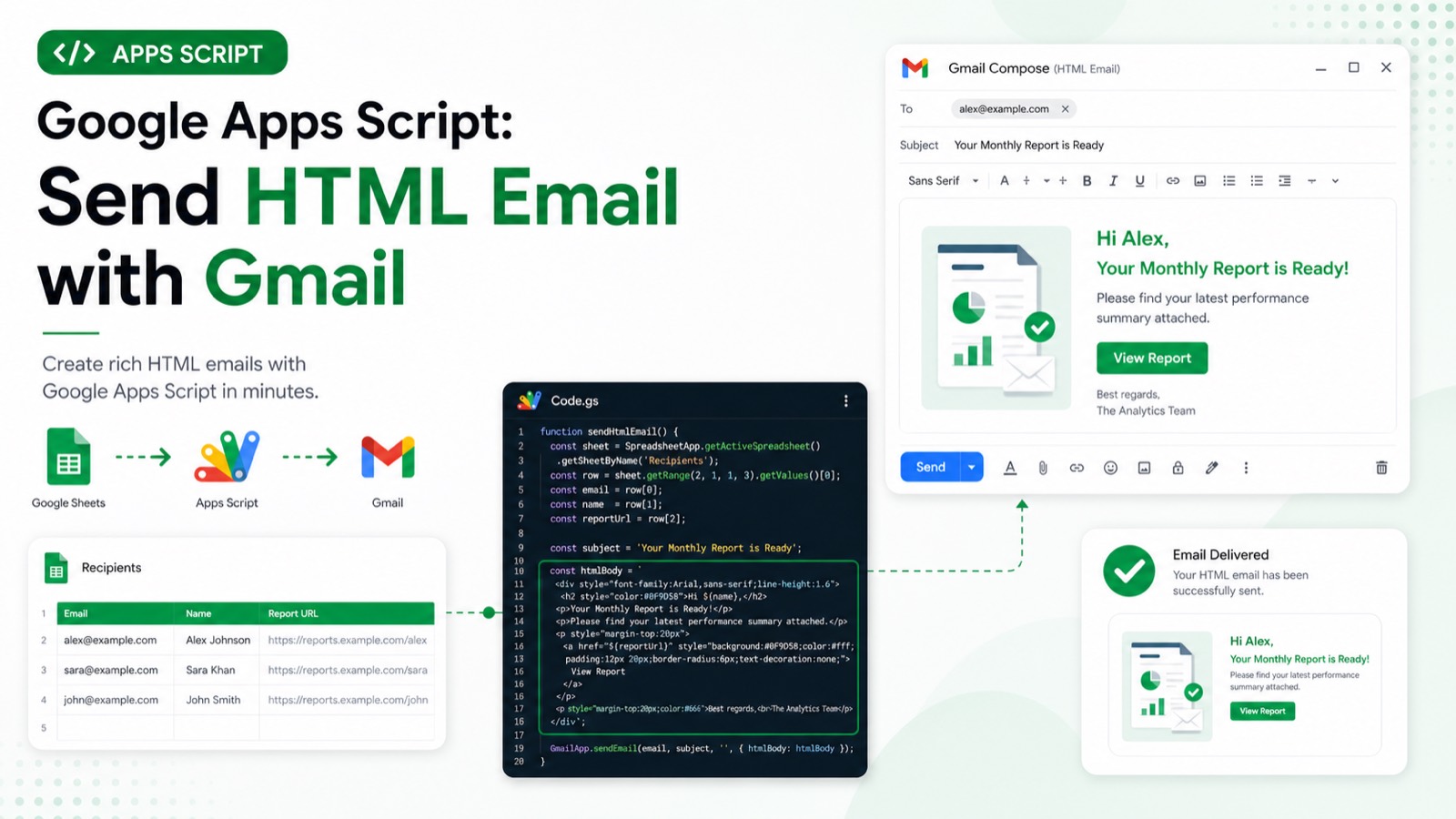
Plain text emails get the job done, but HTML lets you add formatting, buttons, and branded layouts. Pass an options object instead of individual arguments when you need HTML:
function sendHtmlEmailFromSheet() {
  var sheet = SpreadsheetApp.getActiveSpreadsheet().getActiveSheet();
  var recipient = sheet.getRange("B2").getValue();
  var name = sheet.getRange("B3").getValue();

  var htmlBody = `
    <h2>Hello, ${name}!</h2>
    <p>This is your automated update from Google Sheets.</p>
    <p><a href="https://yourlink.com" style="background:#4285F4;color:white;padding:10px 20px;text-decoration:none;border-radius:4px;">View Report</a></p>
  `;

  MailApp.sendEmail({
    to: recipient,
    subject: "Your Weekly Report",
    htmlBody: htmlBody
  });
}#Method 4: Trigger Email Automatically When a Row is Edited
Instead of running the script manually, you can fire it automatically whenever someone edits your sheet. In the Apps Script editor, click the Triggers icon (clock symbol on the left sidebar), then Add Trigger. Or set it up programmatically:
function createEditTrigger() {
  var ss = SpreadsheetApp.getActiveSpreadsheet();
  ScriptApp.newTrigger("sendEmailFromSheet")
    .forSpreadsheet(ss)
    .onEdit()
    .create();
}
Run createEditTrigger() once. From that point on, every edit to the sheet fires your email function. Add column-specific logic inside sendEmailFromSheet() to control exactly when an email should go out.
#Method 5: Use GmailApp for More Control
GmailApp gives you extra options — CC, BCC, reply-to address, and file attachments. It also carries a higher daily quota (1,500 emails for Workspace) and is the right choice when you need attachments or more routing options.
function sendEmailWithGmailApp() {
  var sheet = SpreadsheetApp.getActiveSpreadsheet().getActiveSheet();
  var recipient = sheet.getRange("B2").getValue();

  GmailApp.sendEmail(recipient, "Report Ready", "See attached.", {
    cc: "manager@example.com",
    bcc: "archive@example.com",
    replyTo: "noreply@example.com",
    attachments: [DriveApp.getFileById("YOUR_FILE_ID").getAs(MimeType.PDF)]
  });
}
Replace YOUR_FILE_ID with the ID from the Google Drive file URL.
#Common Errors and How to Fix Them
"You do not have permission to call MailApp.sendEmail" — you skipped the authorization step. Run the function manually once and click Allow in the popup.
Emails going to spam — this happens when recipients haven't interacted with your domain. Add a plain-text version alongside the HTML body using the body parameter in your options object.
"Service invoked too many times" — you've hit the daily quota. Add the "Sent" status flag shown in Method 2 to prevent repeat sends.
Script times out — Apps Script cuts off after 6 minutes. For large lists, split sending across multiple trigger runs using PropertiesService to store your position.
#Quotas to Know
Free Gmail accounts are limited to 100 emails per day via both MailApp and GmailApp. Google Workspace accounts get 1,500 emails per day. Recipients in CC and BCC both count toward this total.
#What to Build Next
Now that you can send email from a sheet, the next logical step is automating when it fires. Check out our guide on the Google Apps Script on-edit trigger to set up event-based automation from spreadsheet changes.
Google Apps Script Copilot writes this entire script from a plain English description in one prompt — free to try.