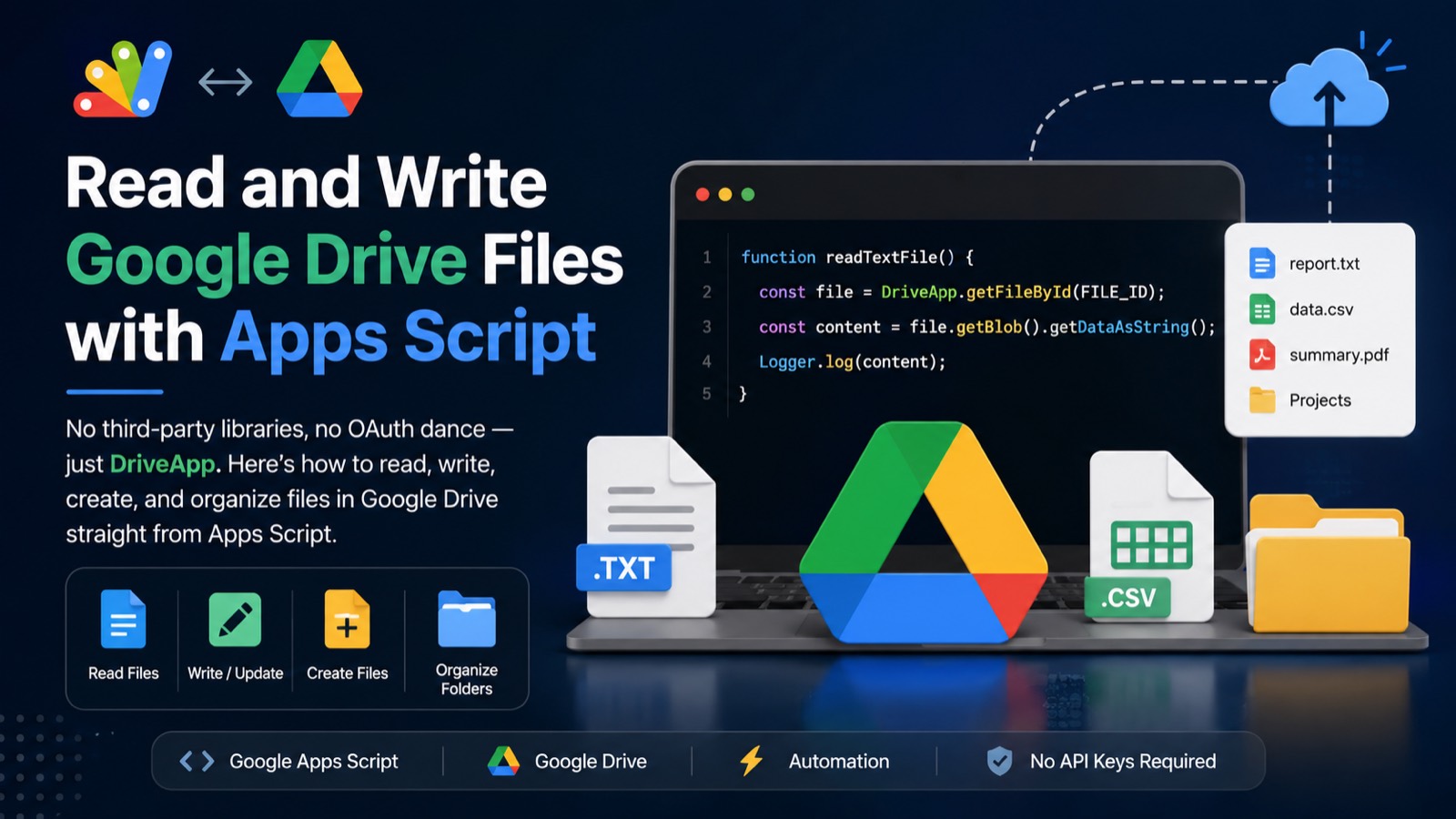
Google Drive is where most workspace data lives — reports, CSVs, PDFs, config files, and more. With Apps Script, you can read from and write to any file in your Drive without a single API key or OAuth setup. The built-in DriveApp service handles all of that for you. This guide covers the four things you'll actually do: read a text file, write or update a file, create a new file, and organize files into folders — all with copy-paste-ready code.
#How DriveApp Works (Quick Mental Model)
DriveApp is Apps Script's built-in bridge to Google Drive. Every file and folder in Drive is a DriveApp.File or DriveApp.Folder object. You find them by ID, by name, or by searching — and then call methods like getBlob(), getAs(), setContent(), or makeCopy() directly on those objects. No API credentials required. The script runs as the authenticated user, so it can only touch files that user can access.
> The file ID is the string in a Drive URL between /d/ and /view. Bookmark it — you'll use it constantly.
#Method 1: Read a Text File from Google Drive
The most common use case: you have a .txt or .csv sitting in Drive and you want to pull its contents into a script. Use DriveApp.getFileById() and then call getBlob().getDataAsString() to get the raw text.
function readTextFile() {
  const FILE_ID = 'your-file-id-here'; // replace with your file's ID

  const file = DriveApp.getFileById(FILE_ID);
  const content = file.getBlob().getDataAsString();

  Logger.log('File name: ' + file.getName());
  Logger.log('Content: ' + content);
}
getDataAsString() defaults to UTF-8. If your file uses a different encoding, pass it as an argument: getDataAsString('ISO-8859-1'). For CSV files, you can then split the string on newlines and commas to parse rows and columns — or pipe it directly into a sheet using SpreadsheetApp.
#Method 2: Read a File by Name (When You Don't Have the ID)
If you only know the file name, use DriveApp.getFilesByName(). It returns an iterator, not a single file, because Drive allows duplicate names. Always call .hasNext() before grabbing the first result.
function readFileByName() {
  const fileName = 'config.txt';
  const files = DriveApp.getFilesByName(fileName);

  if (!files.hasNext()) {
    Logger.log('File not found: ' + fileName);
    return;
  }

  const file = files.next();
  const content = file.getBlob().getDataAsString();
  Logger.log(content);
}
Searching by name is convenient, but brittle — rename the file and your script breaks. Use file IDs in production automations. Reserve name-based lookups for quick scripts or one-off tools.
#Method 3: Write to an Existing File
Apps Script can overwrite the content of a plain-text file using setContent(). This replaces everything currently in the file — there is no append method on text files natively, so if you need to append, read the content first, concatenate, then write it back.
function writeToFile() {
  const FILE_ID = 'your-file-id-here';

  const file = DriveApp.getFileById(FILE_ID);
  file.setContent('Updated at: ' + new Date().toISOString());

  Logger.log('File updated: ' + file.getName());
}
To append instead of overwrite, read first then write:
function appendToFile() {
  const FILE_ID = 'your-file-id-here';
  const newLine = '\nNew entry: ' + new Date().toISOString();

  const file = DriveApp.getFileById(FILE_ID);
  const existing = file.getBlob().getDataAsString();
  file.setContent(existing + newLine);
}#Method 4: Create a New File in Google Drive
To create a brand new file, use DriveApp.createFile(). Pass it a name and the content, and it lands in the root of your Drive. You can move it to a folder immediately after creation.
function createNewFile() {
  const fileName = 'report-' + new Date().toISOString().slice(0, 10) + '.txt';
  const content = 'Automated report generated by Apps Script.';

  const newFile = DriveApp.createFile(fileName, content);
  Logger.log('Created: ' + newFile.getUrl());
}
You can also create a file from a Blob — useful when you want to specify a MIME type, like creating a CSV that Drive recognizes properly:
function createCsvFile() {
  const csvContent = 'Name,Email,Status\nAlice,alice@example.com,Active\nBob,bob@example.com,Inactive';
  const blob = Utilities.newBlob(csvContent, 'text/csv', 'contacts-export.csv');

  const file = DriveApp.createFile(blob);
  Logger.log('CSV created: ' + file.getUrl());
}#Method 5: Work with Folders
Dropping files into folders keeps Drive tidy and makes your automations predictable. You can get a folder by ID, create one if it doesn't exist, or move a file into it after creation.
function createFileInFolder() {
  const FOLDER_ID = 'your-folder-id-here';

  const folder = DriveApp.getFolderById(FOLDER_ID);
  const file = folder.createFile('log.txt', 'Script ran at: ' + new Date());

  Logger.log('File in folder: ' + file.getUrl());
}
To move an existing file into a folder, add it to the target folder and remove it from the current parent:
function moveFileToFolder() {
  const FILE_ID   = 'your-file-id-here';
  const FOLDER_ID = 'your-folder-id-here';

  const file   = DriveApp.getFileById(FILE_ID);
  const folder = DriveApp.getFolderById(FOLDER_ID);

  // Add to target folder
  folder.addFile(file);

  // Remove from root (or its current parent)
  DriveApp.getRootFolder().removeFile(file);

  Logger.log('Moved: ' + file.getName());
}#Method 6: List All Files in a Folder
Iterating over files in a folder is a common pattern — useful for batch processing, audits, or building a file inventory in a Sheet. DriveApp.getFolderById().getFiles() returns a FileIterator.
function listFilesInFolder() {
  const FOLDER_ID = 'your-folder-id-here';
  const folder = DriveApp.getFolderById(FOLDER_ID);
  const files   = folder.getFiles();

  const sheet = SpreadsheetApp.getActiveSpreadsheet().getActiveSheet();
  sheet.clearContents();
  sheet.appendRow(['Name', 'URL', 'Last Updated']);

  while (files.hasNext()) {
    const file = files.next();
    sheet.appendRow([
      file.getName(),
      file.getUrl(),
      file.getLastUpdated()
    ]);
  }

  Logger.log('Done — check your sheet.');
}
This is a clean way to build a live Drive inventory: run it on a daily trigger and you always have a fresh list in your spreadsheet. Pair it with the post on scheduling Apps Script triggers to automate this completely.
#Handling Large Files and Quotas
DriveApp works well for text files, CSVs, and small binaries. A few things to keep in mind as files get larger:
Apps Script has a 6-minute execution limit per run. Reading and writing very large files (tens of thousands of rows) inside that window is possible but tight — chunk your data or use triggers to spread the work across multiple executions. Google also caps daily URL Fetch and DriveApp calls for consumer accounts. If you hit quotas, the execution log will show a clear error. For higher limits, Google Workspace Business plans apply a more generous quota table — details are in the Apps Script Quotas and Limits guide.
#Common Errors and How to Fix Them
Exception: No item with the given ID exists — The file ID is wrong, or the running account doesn't have access to that file. Double-check the ID from the URL and confirm the file is shared with the account running the script.
Exception: You do not have permission to call DriveApp.createFile — The script hasn't been granted Drive scope yet. Run any DriveApp function once manually from the Apps Script editor; it will trigger the OAuth permission prompt.
File shows up in Drive but content is empty — setContent() with an empty string is valid. Check that your variable actually holds data before writing: Logger.log(content) right before the write call will confirm.
#Putting It All Together: A Practical Example
Here's a realistic end-to-end script: it reads a CSV from Drive, parses the rows, logs a summary to a new dated file, and drops that log into an archive folder.
function processAndLog() {
  const CSV_FILE_ID    = 'your-csv-file-id';
  const ARCHIVE_FOLDER = 'your-archive-folder-id';

  // 1. Read the source CSV
  const csvFile    = DriveApp.getFileById(CSV_FILE_ID);
  const csvText    = csvFile.getBlob().getDataAsString();
  const rows       = csvText.split('\n').filter(r => r.trim());
  const dataRows   = rows.slice(1); // skip header

  // 2. Build a summary log
  const summary =
    'Run date : ' + new Date().toISOString() + '\n' +
    'Rows processed: ' + dataRows.length + '\n' +
    'Source file : ' + csvFile.getName();

  // 3. Create the log file in the archive folder
  const folder  = DriveApp.getFolderById(ARCHIVE_FOLDER);
  const logName = 'log-' + new Date().toISOString().slice(0, 10) + '.txt';
  const logFile = folder.createFile(logName, summary);

  Logger.log('Log saved: ' + logFile.getUrl());
}
Attach this to a daily time-based trigger and you have a self-maintaining audit trail with zero manual effort.
> Google Apps Script Copilot writes any of these snippets in one prompt — free to try.
#Key Methods Reference
DriveApp.getFileById(id) — fetch a file by its ID. DriveApp.getFilesByName(name) — search by name, returns an iterator. file.getBlob().getDataAsString() — read file content as text. file.setContent(text) — overwrite a plain-text file. DriveApp.createFile(name, content) — create a new file in Drive root. folder.createFile(name, content) — create directly inside a folder. folder.addFile(file) — move a file into a folder. folder.getFiles() — iterate over all files in a folder. DriveApp.getFolderById(id) — fetch a folder by its ID.
#Next Steps
Now that you can read and write files in Drive, a natural next step is pairing this with Google Sheets — import that CSV directly into a spreadsheet, or export sheet data back to Drive on a schedule. The Apps Script CRUD Operations with Google Sheets guide covers exactly that pattern. And if you want these scripts to run without any manual trigger, see How to Schedule a Google Apps Script to Run Automatically.